
The laptop was fine last week. Now it takes four minutes to reach the desktop, the fan runs hard while nothing is open, and the browser keeps landing on a search page you never chose. Something has changed, and you’d rather not sign in to internet banking again until you know what it is.
The instinct is to search for a remover tool or to click the button on the pop-up offering to clean the machine. Both can make things worse. Most pop-up cleaners are the infection, and even a genuine removal tool only solves half the problem, because malware that has been running for a week may already have seen your email password and your banking session.
What follows is the order I’d work in on a home laptop. Containment first, then scanning, then cleanup, then the part most guides skip: the accounts the malware may have touched.
Table of Contents
- Spot the Signs and Stop the Spread
- Scan Safely in Safe Mode and Offline
- Remove Leftover Malware and Fix Returning Symptoms
- Secure Accounts After an Infection
- Restore Files and Keep Malware Out
- Decide Whether to Keep Cleaning or Call a Technician
Spot the Signs and Stop the Spread
The symptoms that point to malware are fairly consistent. Redirects top the list.
- Browser redirects. You click a saved link and land somewhere else, or a search result opens a page of ads. A hijacked search setting does this without any file visibly changing.
- A toolbar or search engine you never chose. Something installed an extension and made it the default.
- Alerts that appear outside the browser window, claiming the laptop is infected and offering a phone number. Real security software doesn’t sell you a hotline.
- Programs opening by themselves, especially a window that flashes at startup and closes again.
- Fan noise and heat with nothing open. Something is working in the background.
- Slow again after a restart. This rules out a stuck update or a browser with forty tabs, because a reboot clears both.

Now separate malware from the thing that imitates it. A call from “Microsoft support”, or a full-screen warning with a number to ring, is a scam, not a virus report. The person on the line wants remote access to your machine or a card payment. Hang up, close the window, install nothing they suggest and pay nothing. Legitimate security companies don’t cold-call about your laptop.
Scale explains why the next five minutes matter. The Australian Cyber Security Centre’s 2024-25 Annual Cyber Threat Report recorded more than 42,500 calls to the national Cyber Security Hotline, a 16% increase on the previous financial year, and found that 46% of confirmed incidents from its proactive engagements involved malware or ransomware. The thing on your laptop is often the first stage of an attack on something else.
Do these five things before you touch a scanner.
- Turn off Wi-Fi and Bluetooth. Malware often needs a live connection to fetch its next stage or send stolen data out.
- Unplug the Ethernet cable, USB drives and external hard drives. An infected laptop writes to whatever is connected, and a backup drive is the worst casualty.
- Stop signing in to banking, email and shopping accounts on that machine. Use your phone or another clean device for anything urgent today.
- Photograph any ransom note or suspicious pop-up before closing it. Your bank or a technician may need the wording, the address and the time.
- Only then start scanning, with the network still off.
Isolation does two jobs at once. It stops the spread to other devices on your home network, and it preserves the evidence for whoever has to unpick the mess.
If you want to know how that containment works at network level, this explanation of how DNS sinkholes stop malicious callbacks is worth ten minutes. It shows why blocking a domain is often faster than chasing files.
One decision before you go further. If the laptop holds business logins, client records or a ransom note, stop here and get help. A DIY clean suits a home machine full of adware. It’s the wrong tool for a device that signs in to someone’s payroll system.
Scan Safely in Safe Mode and Offline
A full scan is the right first pass, with one caveat. It runs inside the operating system you’re trying to clean, so malware that hooks into file reads can hand the scanner a clean result.
The Cyber.gov.au guidance on detecting and removing malware calls for a full scan rather than a quick one, because a full scan checks the entire device instead of only the files you’ve opened recently. It also advises leaving backup drives unplugged until scanning finishes, which is easy to forget when you’re anxious about the photos on them.
The four options below differ in where they run, not just how long they take.
| Scan option | How to start it | Best for | Limitation |
|---|---|---|---|
| Windows Security full scan | Virus and threat protection, Scan options, Full scan | Malware that runs but isn’t hidden | Runs inside Windows, so hidden malware can survive |
| Microsoft Defender Offline scan | Virus and threat protection, Scan options, Microsoft Defender Offline scan | Rootkits and malware hiding from the running system | Needs a restart and takes far longer, so treat it as a one-off deep check |
| Safe Mode with Networking scan | Restart holding Shift, Troubleshoot, Advanced options, Startup Settings, press 5 | Malware that blocks security tools from starting | Some malware still loads in Safe Mode |
| Third-party on-demand scanner | Download on a clean device, copy the installer across, run a full scan | A second opinion after Windows finds nothing | Pop-up scanners can be scams, so use a reputable one only |
The scan that runs before Windows does
For the offline option, open Windows Security, go to Virus and threat protection, choose Scan options, select Microsoft Defender Offline scan and click Scan now. The laptop restarts and scans outside the running system, then reports back when it finishes. This is the one scan a rootkit can’t lie to, because Windows isn’t loaded while it works.
Safe Mode with Networking, step by step
Safe Mode loads a minimal set of drivers, which leaves most malware behind.
- Hold Shift while selecting Restart from the Start menu.
- Choose Troubleshoot, then Advanced options.
- Open Startup Settings and select Restart.
- Press 5 for Safe Mode with Networking.
- Run a full scan, then restart normally and check whether the symptoms are gone.
On a Mac the equivalent is holding Shift at startup to reach Safe Mode. Check Login Items in System Settings for anything you don’t recognise, and run a reputable scanner alongside the built-in protection rather than instead of it.
If Windows finds nothing and the laptop still misbehaves, a second engine is cheap insurance. This roundup of compare top antivirus software covers the reputable options rather than the ones that advertise through pop-ups.
Results follow one rule: quarantine, never delete. Quarantining lets you undo a false positive on a work document, and manual deletion inside system folders can stop Windows starting. Then repeat the scan until two consecutive passes come back clean.
Practical rule: two clean scans in a row, from a scan that ran outside Windows or in Safe Mode, is the minimum bar for calling a laptop clean.
Remove Leftover Malware and Fix Returning Symptoms
A clean scan doesn’t guarantee a clean machine. Malware usually leaves behind a foothold the scanner doesn’t classify as a threat: an installed program, a startup entry, a scheduled task or a browser extension. Work through these in order.
- Open Settings, Apps, Installed apps and sort by install date. Anything unfamiliar that appeared around the time the symptoms started comes off. Installers are often the piece the antivirus quarantined the payload of.
- Press Ctrl+Shift+Esc for Task Manager and open Startup apps. Disable unfamiliar entries. Malware frequently relaunches from here at every boot, which is why the laptop seems cured until the next restart.
- Stay in Task Manager and check the Processes tab. Right-click any unknown name using heavy CPU, memory or network, open its file location, note where it lives, then end the process so you can remove it.
- Open Task Scheduler and disable unfamiliar tasks set to run at logon or on a timer. This is the most common reason a removed program reappears days later.
- Strip unknown browser extensions and reset the browser to defaults. Then set the search engine and homepage yourself, because resetting alone sometimes restores whatever the hijacker chose.
- Check Settings, Accounts, Other users for any account you didn’t create. An extra local administrator is a back door that survives everything else.
Never delete files inside Windows or System32 by hand. A wrong deletion there stops the laptop booting, and you’ll trade a malware problem for a reinstall. Let the security software quarantine them instead, then run another full scan.
When the symptoms come back
Use this to match what you’re seeing to the most likely cause. Each fix assumes you’ve already rescanned once.
| Symptom | Likely cause | Fix |
|---|---|---|
| Browser redirects or new toolbars | Malicious extension or hijacked search settings | Remove unknown extensions, reset browser settings, check the default search engine |
| Pop-ups or fake virus alerts | Adware or a scam page | Close the browser, check startup items, and do not call any number shown |
| Slow start-up and high CPU use | Cryptominer or leftover process | Check Task Manager startup and processes, then run a full rescan |
| Programs reinstall themselves | Scheduled task or service | Check Task Scheduler and Services, disable the entry, then rescan |
| Files encrypted with a ransom note | Ransomware | Isolate the laptop, do not pay, seek professional help, restore from a clean backup |
| Antivirus turns off by itself | Malware disabling protection | Run the Defender Offline scan, turn protection back on, and consider a Windows reset if it returns |
Browser problems usually resolve quickly once the extension and the default search engine are reset. Reappearing programs take longer, because they need Task Scheduler, Services and a fresh rescan before you can trust the result.
A ransom note ends the do-it-yourself route. Don’t pay, keep the laptop offline and move to the final section. Paying funds the next attack and frequently returns nothing usable, and the encryption doesn’t care how much the files mattered to you.
A Windows reset that keeps your files is the last resort, and only after the files you care about are copied to clean storage and the scan results are recorded somewhere you can read them later.
Secure Accounts After an Infection
A clean scan is not the end of an infection. Cleaning the laptop closes the door, but anything the malware already copied has left the building, and a remote-access scammer may have watched you type a password.
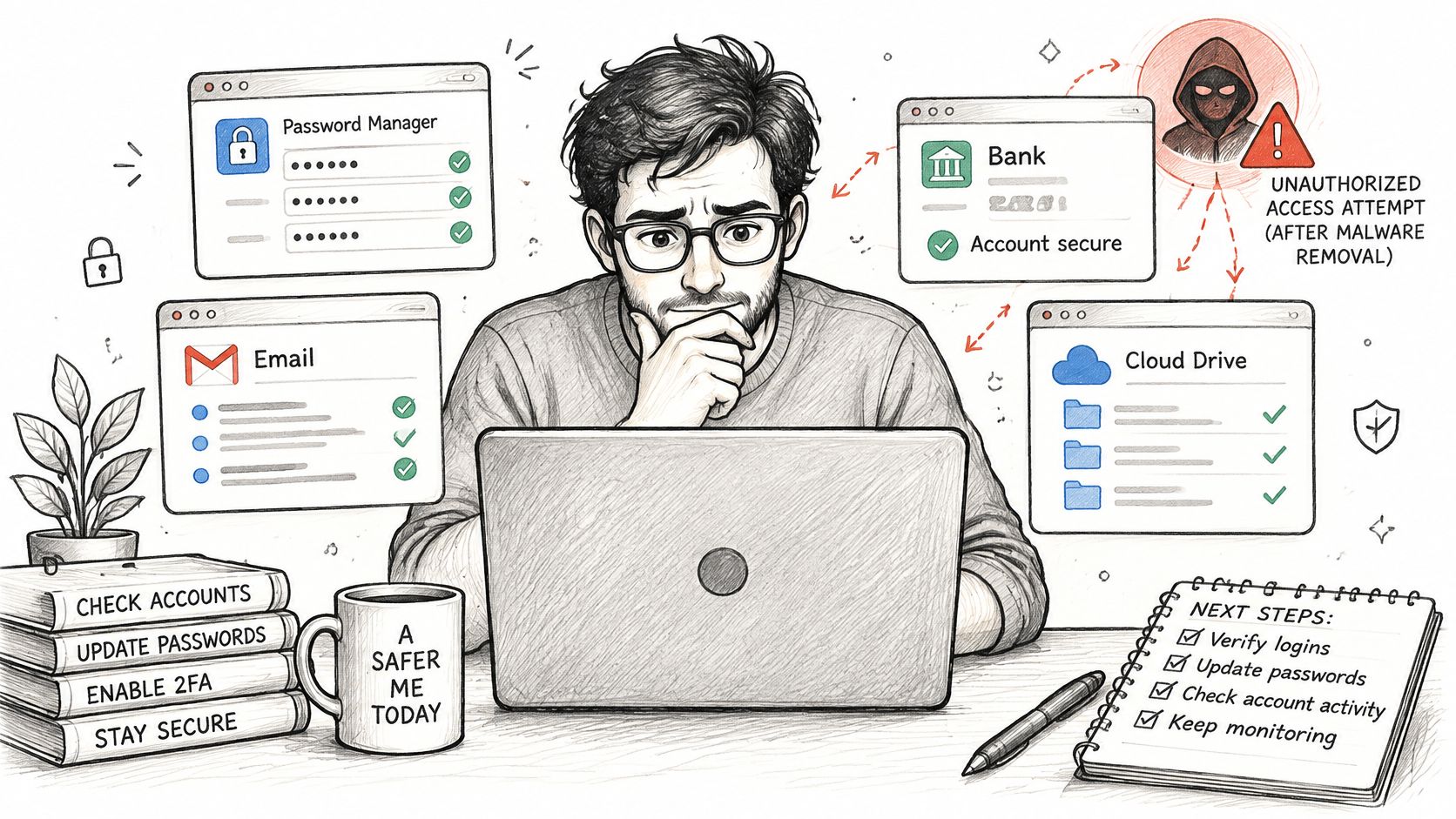
That’s why account checks run alongside the cleanup, not after it. Scamwatch’s guidance on account and identity takeover scams warns that attackers who gain access can change passwords, steal personal information, access banking details and take over accounts, and recommends checking for additional malware, changing passwords across devices and accounts, and contacting the bank immediately.
What to inspect
Start with online banking: open your transaction history and read it properly, and ring the bank if you signed in on that laptop while it was infected. In email, look for forwarding rules and filters that copy messages to an address you don’t recognise, since this is how an attacker keeps reading your mail after you change the password. Clear browser-saved passwords rather than trusting them. Uninstall any remote-control software you didn’t install yourself, and remove unfamiliar user accounts.
A warning that tells you to ring a number or hand over remote access is a scam. A detection reported by your own security software is a malware case. They need different responses, and only one of them involves your bank.
Change passwords in this order, from a clean device
- Email first. Everything else resets through it, so a compromised inbox makes every later change pointless.
- Banking and payment accounts, including any card stored in a shopping app.
- Cloud storage and your Apple or Microsoft account, because these hold your files and your device backups.
- Social media, where a takeover is used to scam your contacts.
- Multi-factor authentication on each one, ideally an authenticator app rather than SMS. Our guide to two-factor authentication setup covers the app-based options if you haven’t set this up before.
If someone talked you into installing remote-access software, the walkthrough below shows what to look for and undo.
Don’t wipe the laptop before these checks. A wipe destroys evidence your bank or a technician may need, and it doesn’t undo a stolen credential, because the credential now lives on someone else’s server.
Once the device is clean and the passwords are changed, reconnect only to trusted networks, starting with your own. Lodge a report with ReportCyber for the attack, and report scam calls or fake support pop-ups to Scamwatch so the activity gets tracked.
Restore Files and Keep Malware Out
Restoring data is where a rushed cleanup undoes itself. The order matters more than the tool.
Confirm the backup was made before the infection started, then copy back only the files you believe are clean. Photos, videos, contacts and messages can generally go to cloud storage first, since that’s the simplest route and leaves the laptop with less to carry. Important documents go to a clean external drive that has never been connected to the infected machine.
After restoring, open a few files from each folder to confirm they work, and scan the restored files before you run any of them. An executable that sat on an old drive for a year is still an executable.
Prevention comes down to a handful of settings. The Cyber.gov.au personal cyber security handbook advises keeping built-in antivirus enabled, letting operating system and software updates install automatically, and leaving antivirus signature updates active, because signatures are what catch new variants of known threats. It also recommends a full scan when antivirus is first switched on or a new device is set up, then automatic scans at regular intervals.
- Automatic Windows and application updates, so a patched flaw doesn’t stay open for months.
- Built-in antivirus on, with signatures updating, rather than a second free scanner that argues with the first.
- A standard user account for everyday browsing, which limits what an infection can change without an administrator prompt.
- No unknown links or attachments, even from a contact whose account may be compromised.
- No new apps installed while the laptop is unclean. Every install is a chance to reintroduce the problem.
If the laptop can’t be cleaned yet, keep it disconnected from the internet, Wi-Fi and Bluetooth, and don’t store important data or sign in to accounts on it in the meantime.
Then set a monthly check: updates installed, antivirus on, scans ran. Disabled protection is a common cause of repeat infections, and our personal computer maintenance checklist covers the rest of the routine. Repeat the check after every restore.
Decide Whether to Keep Cleaning or Call a Technician
Keep cleaning yourself when the symptoms were minor, two scans in a row have come back clean, no banking or business data was on the laptop, and the symptoms stopped after the fixes above. That is a finished job.

Stop and get help when any of these is true:
- A ransom note appeared. Encryption is not a cleanup task.
- Business logins or client data were on the laptop. The exposure is a business problem, not just a device problem.
- Banking was accessed on the infected machine. Speed matters more than pride here.
- Symptoms return after two rescans. Something is reloading the payload that a scan won’t reach.
- Windows won’t start in Safe Mode. At that point the device needs to be examined from outside.
Ransomware earns the top spot on that list. The 2024-25 Annual Cyber Threat Report counted 121 ransomware incidents in 2023-24 and 138 in 2024-25, and 39% of the later cases surfaced through proactive contact from the agency, meaning the victims hadn’t realised they were affected. Waiting for symptoms to announce themselves is not a safe plan.
When you hand the laptop over, a technician identifies the fault first, removes the malware, checks what was affected, secures the accounts and recommends a fix that suits both the problem and your budget. Remote support often starts troubleshooting without a visit, using secure software to access your computer, and an on-site technician handles what remote tools can’t, such as a drive that needs pulling. Computer Daddy also offers computer and laptop repairs in Sandringham, VIC 3191, when hardware is involved. If cost is the hesitation, the breakdown of computer virus removal cost shows what shapes the price.
Book remote support or an on-site visit, whichever gets you seen sooner, and arrive with these things ready:
- The symptoms and when they started, including anything you installed that week.
- The accounts and websites you used on the laptop, banking first.
- A call already made to your bank if any banking happened on that machine.
- The files that matter most, so recovery starts with them.
A clean laptop with a compromised email account is not a fixed laptop, so the job covers both. Computer Daddy removes viruses and malware from Windows and Mac computers, then works through the affected settings and accounts with you so the cleanup closes the door. Visit Computer Daddy to book remote support or a visit across Bayside, Port Phillip and Kingston.